




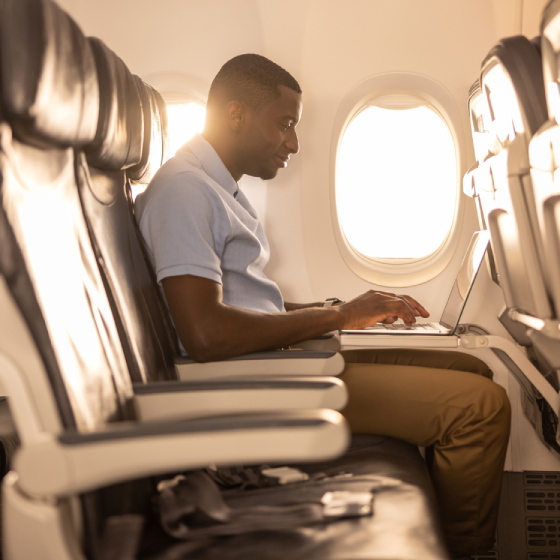
- Download the WestJet app before takeoff
- Once on board, put your mobile device (smartphone or tablet) into Airplane Mode
- Turn Wi-Fi on and connect to the "WestJetConnect" Wi-Fi network
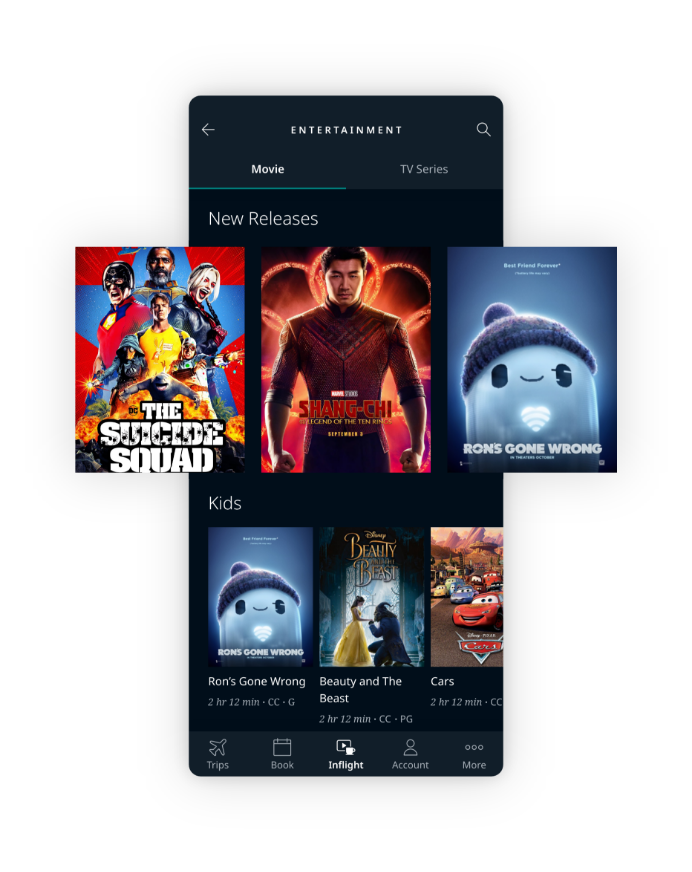
- Launch the WestJet app and select the Inflight tab
- Once on board, put your laptop or mobile device into Airplane Mode
- Turn Wi-Fi on and connect to the "WestJetConnect" Wi-Fi network
- Open a new browser window and go to westjetconnect.com
- Apple mobile devices running iOS 11.0 or higher
- Android mobile devices running Android 7.0 or higher
- MacBook running macOS 10.12 or higher
- Windows laptops running Windows 7, 8 10, 11
- Check that your device is connected to the WestJetConnect WiFi
- Make sure you disable power saving mode on your device
- If your Apple device is running iOS 14 make sure you allow access to the WestJet app. You can find it under Settings > Privacy > Local Network
We are currently working to resolve an issue affecting select Android devices where media cannot be played. Known devices affected by this issue include but may not be limited to:
- All Samsung S23 devices with Android version 13
- Google Pixel 4 and 4a with Android version 13
- Google Pixel 6a with Android version 13
- Google Pixel 7 and 7 Pro with Android version 13
- Oneplus 11 with Android version 13
- Open the Inflight tab on the WestJet app or on www.westjetconnect.com
- Internet availability is displayed at the top right-hand corner, click on it to proceed to pricing & payment options.
- A receipt will be emailed to you after you have completed your Internet purchase. If you can't find your receipt in your email inbox try checking your Junk folder.
Certain apps and services are not supported when using on-board Internet:
- Streaming platforms such as Netflix, YouTube, Amazon Prime Video, etc.
- VoIP applications such as Skype, FaceTime, Viber, etc.
- SMS texting
- Downloading and updating apps on your device
-
-
Contact our Customer Care Representative at 855-812-3621 (Toll Free) or email: WestjetWiFiHelp@panasonic.aero.